I. Initiate a PUSH
Step 1: Select Coupons
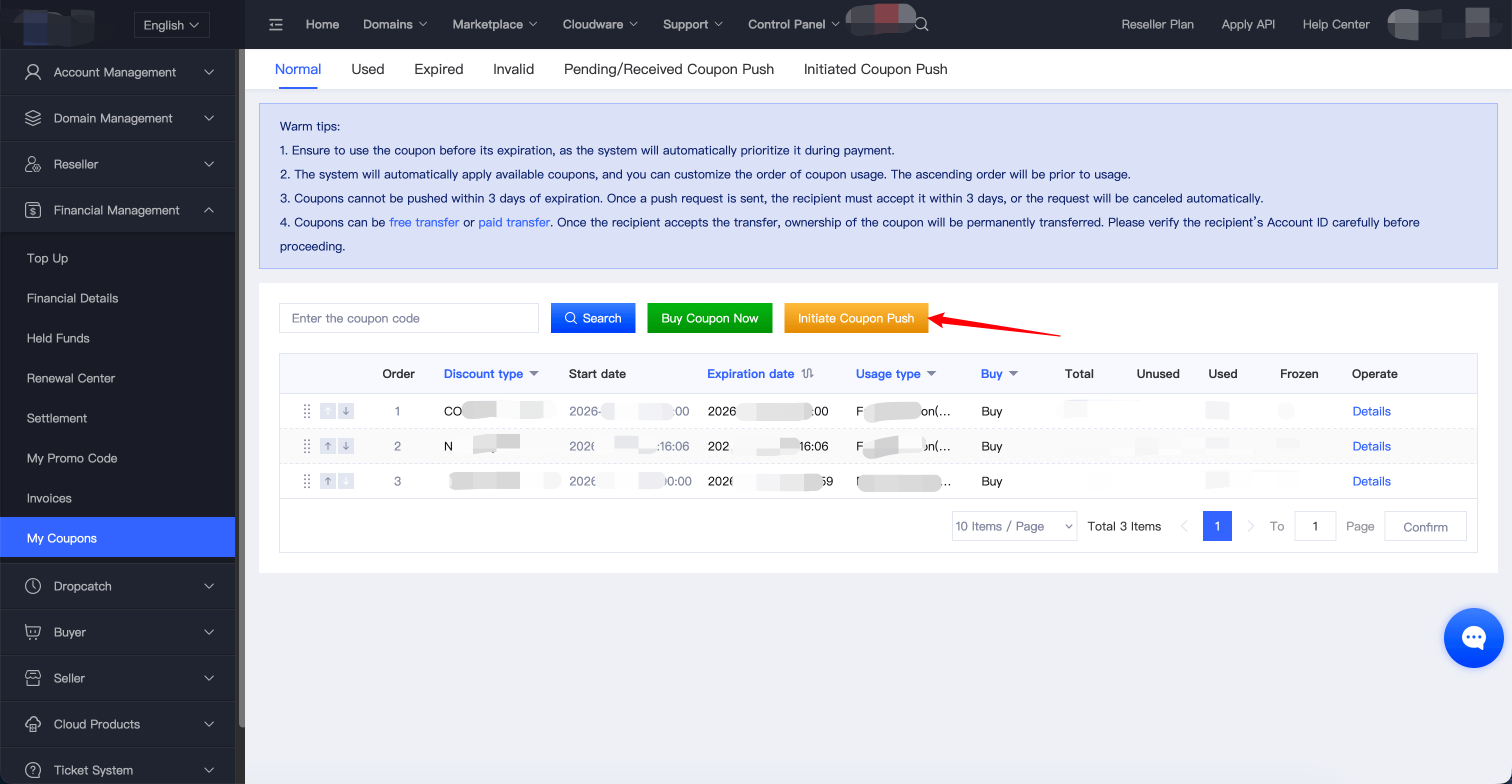
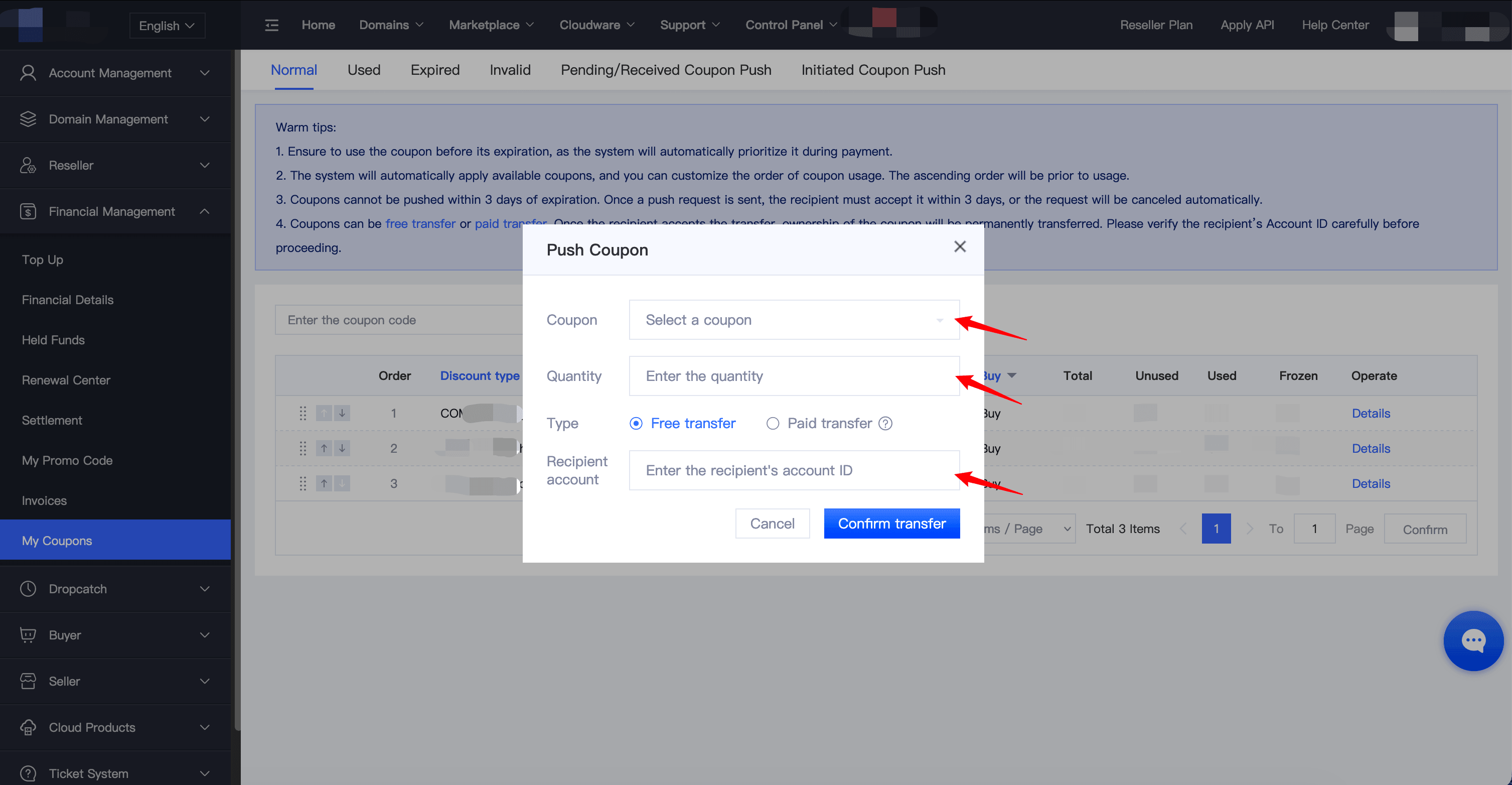
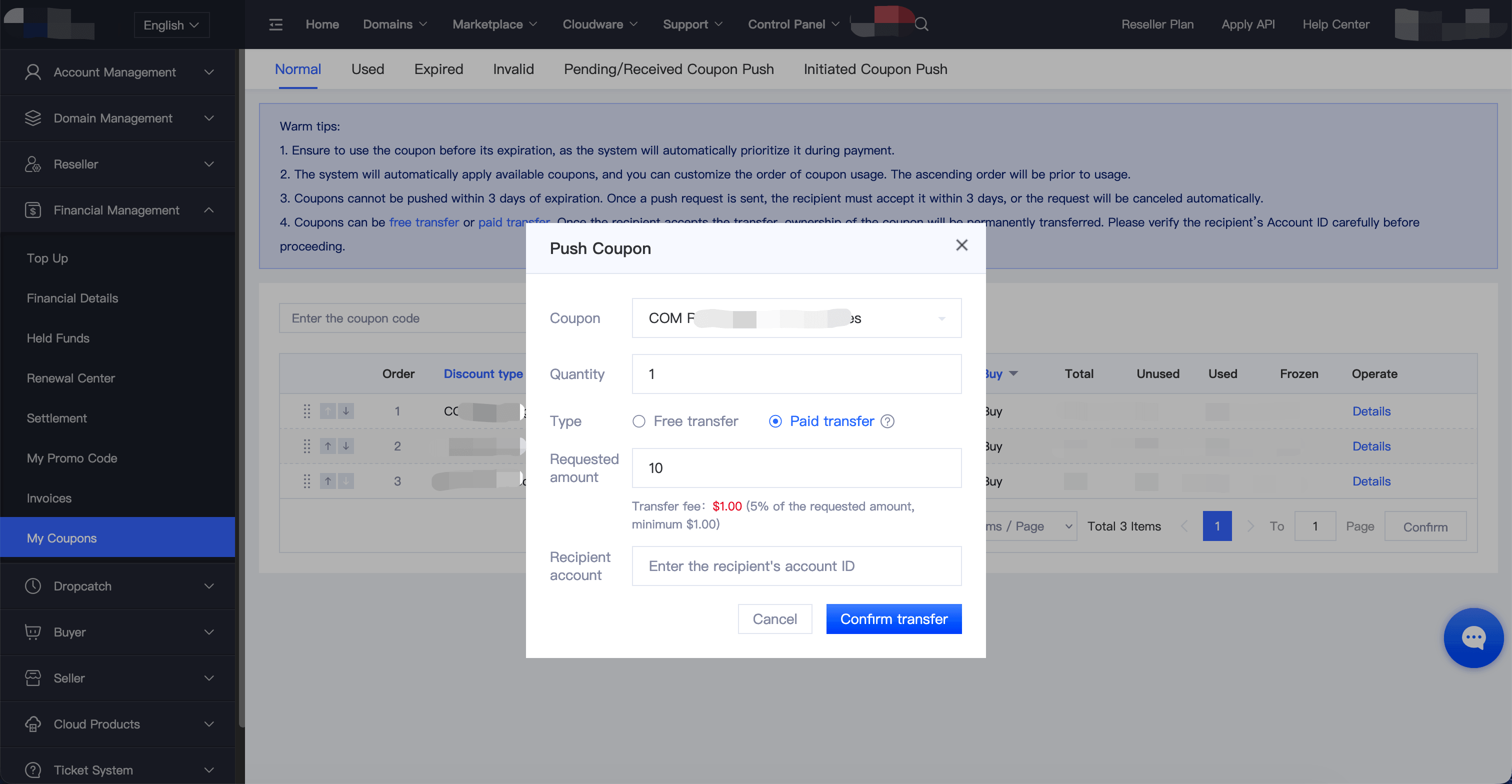
Go to My Coupons and click Initiate PUSH. Select the coupon type you want to transfer and enter the quantity.
Step 2: Choose a PUSH Method
Coupon PUSH supports the following options:
- Free PUSH: Transfer coupons to another account at no charge.
- Paid PUSH: Set a transfer price and send the coupons to another account for a fee.
Step 3: Submit the PUSH Request
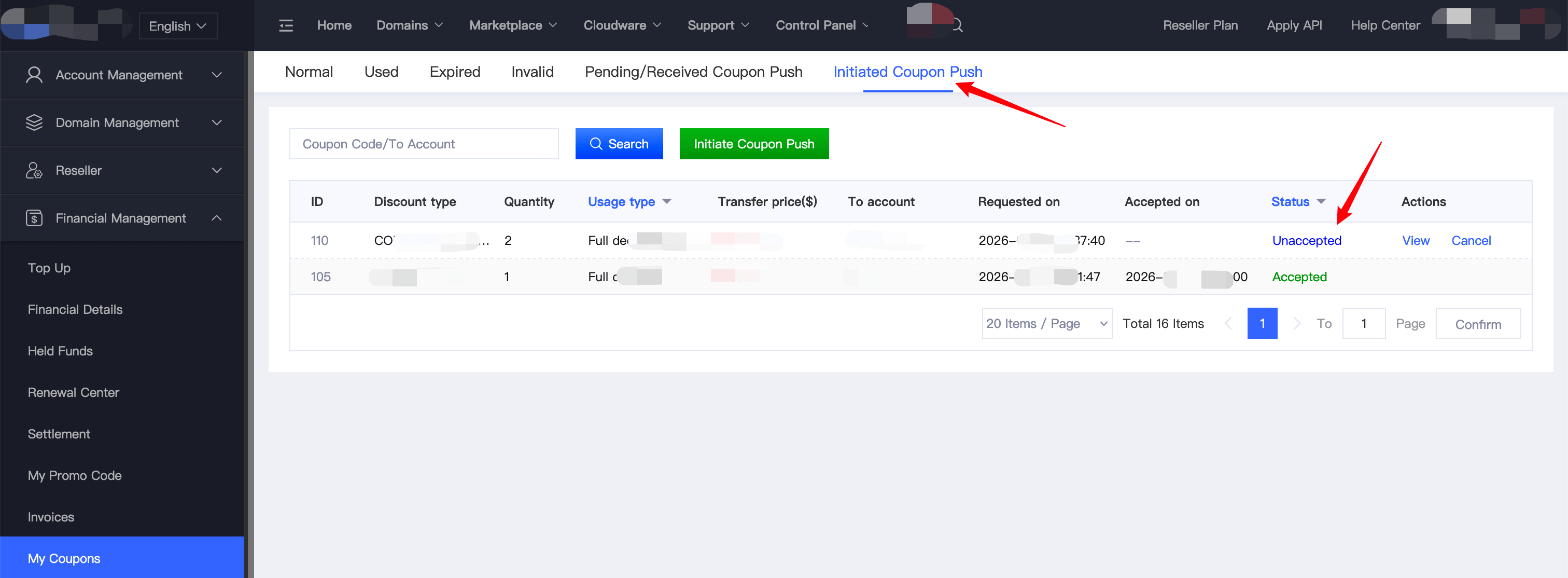
Enter the recipient's Account ID, verify the coupon details, and click Submit. Complete the required security verification to send the PUSH request. You can view all submitted PUSH requests under My Coupons → Sent PUSH Requests.
II. Accept a PUSH
1. Review and Accept the Coupon
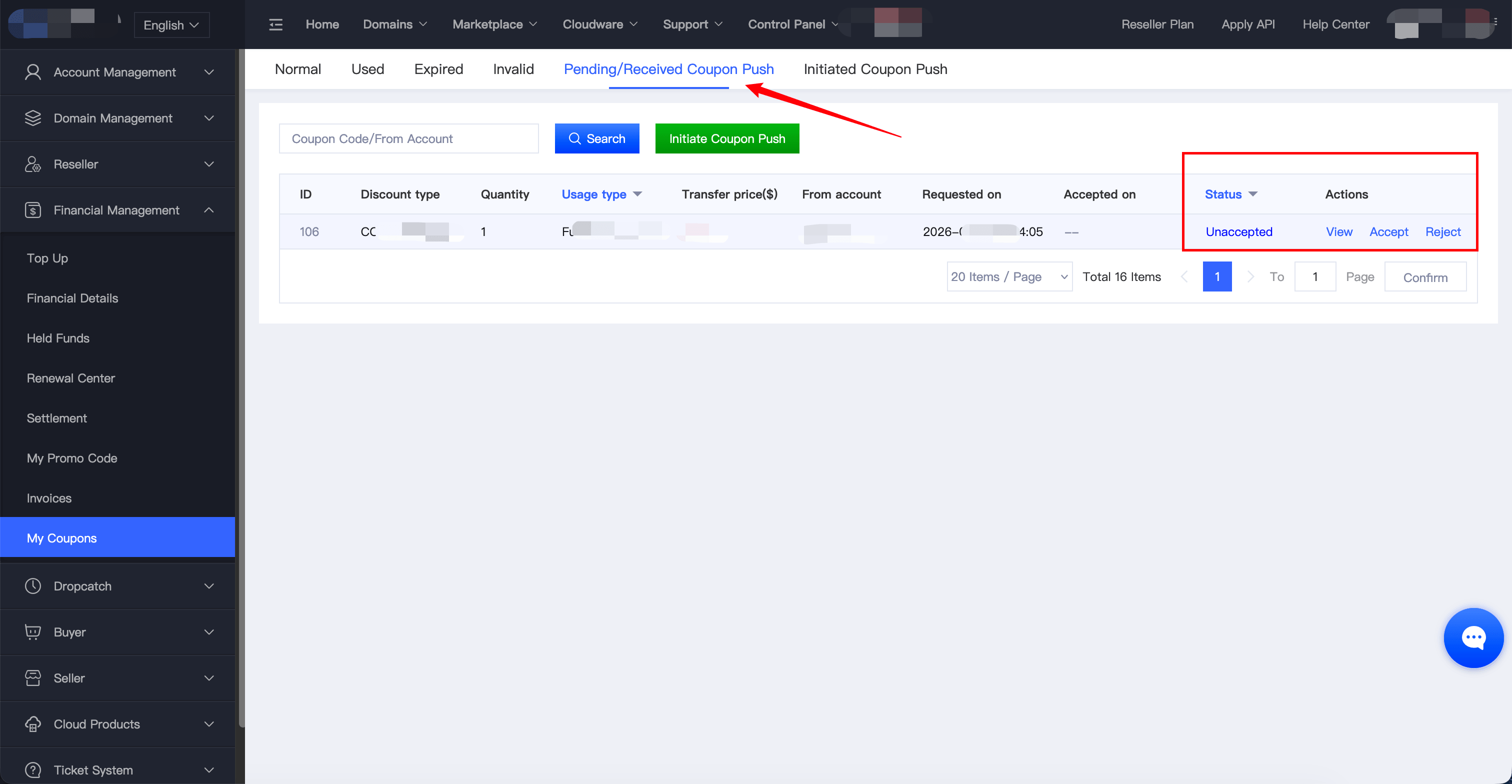
Once a PUSH request has been sent, the recipient should accept it promptly. Go to My Coupons → Received PUSH Requests, review the pending coupon, and click Accept after confirming the details are correct. Security verification is required to complete the acceptance.
2. Accepting a Paid PUSH
If you are accepting a Paid PUSH:
- The sender must set a transfer price for the coupon before initiating the PUSH.
- Make sure your account balance is sufficient to complete the payment.
- Once the payment is completed and the PUSH is accepted, the coupon will be automatically transferred to your account.
Note: Once a PUSH is completed, ownership of the coupon is permanently transferred to the recipient's account and cannot be revoked or restored. Please verify the coupon details and transaction information carefully before proceeding.